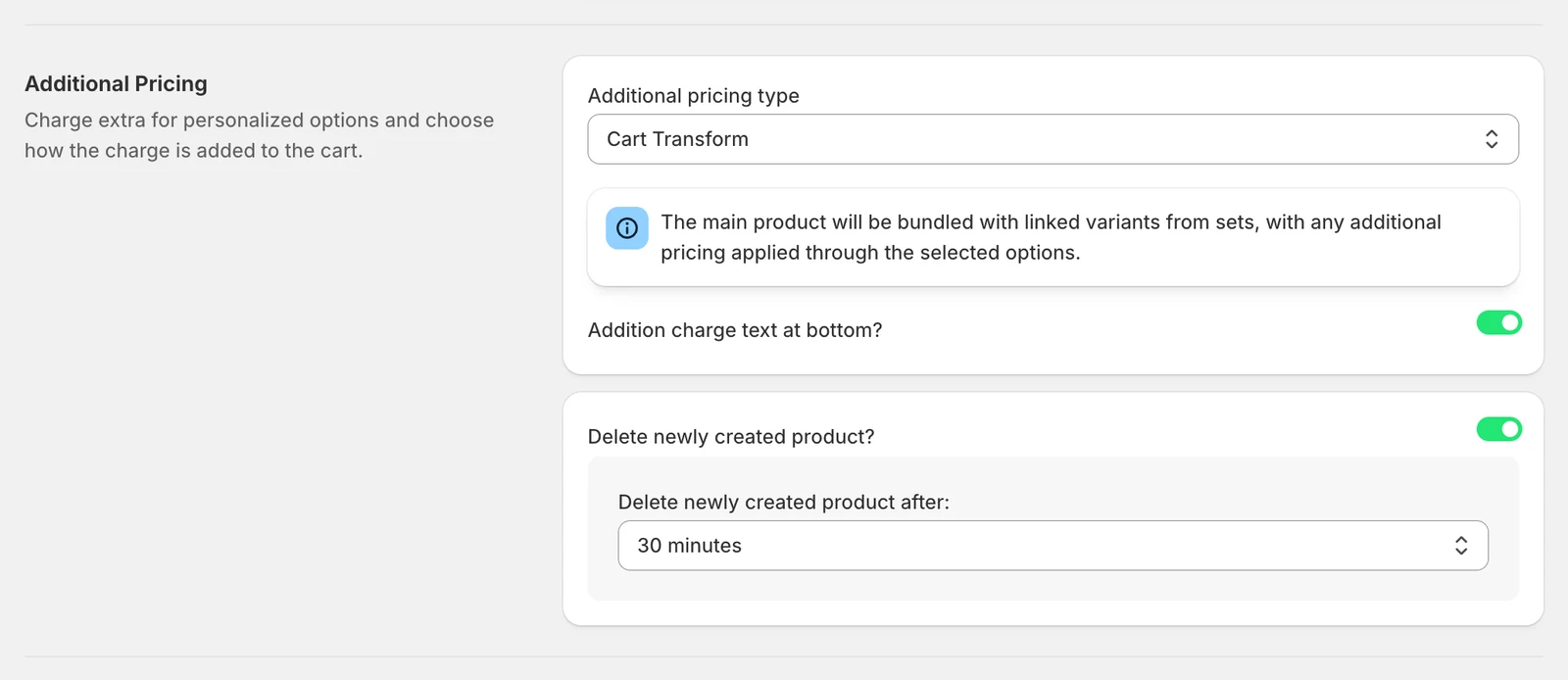
The extra price of an option travels from the product page to the cart with the pricing method set under Settings → Functionality → Additional pricing (read Pricing methods first). When the total is wrong, it is almost always one of the situations below.
The charge is missing
Preorder or subscription products
Cart Transform cannot change the price of a cart line that carries a selling plan (preorder, subscription apps). For those products switch the method to Additional product and test again. Because the method is store-wide (only Create a new product is per product), keep that in mind if only a few products use selling plans. A third-party preorder app that replaces the Add to Cart button also prevents the charge — disable it on personalized products to confirm.
Sticky Add to Cart bars and mobile
A sticky bar has its own button that the app is not attached to, so the product is added at the base price. Hide the bar on personalized products or ask us to attach the app to it. The same happens with “quick add” buttons on collection pages.
Express checkout and checkout links
With the older pricing methods the charge is attached when the shopper leaves the cart page. Dynamic checkout buttons (Shop Pay, PayPal, Apple Pay on the product or cart page) and direct checkout links skip that step, so the charge is lost. Either hide the express buttons on personalized products or use Cart Transform, which works with express checkout.
Large carts
Shopify limits what a cart transform can do in one cart. In a test with 15 personalized items the charge was dropped. If you sell in bulk, test with a full cart; Additional product has no such limit.
The charge depends on a choice the shopper did not make
If the extra price is on a Color Choices or Image Choices option and the shopper never touches it, nothing is charged — even if a default is shown. Put the price on the option the shopper always fills (the text field), or make the choice Required.
“Add engraving £0.00” shows after Add to Cart
The shopper used the theme’s Add to Cart without opening the personalization. The message is the app’s cart text for the untouched option. Switch the style to Popup with the theme’s buttons hidden (⋮ → General settings) if the product must be personalized, or edit the text under Settings → Translations → Global texts.
The charge is doubled or too high
- A price on the option and on the choice set (Assets → Image Sets / Color Sets / Option Sets) adds up. Put the price in one place.
- A template applied twice (or a product edited after applying a template, then the template applied again with Overwrite off) can leave two priced options with the same label. Check the Options list for duplicates.
- With Additional product the hidden Item personalization product has a unit price (0.01 by default). If you changed the unit, every option price must be a multiple of it, otherwise the quantity rounds.
- Percentage charges (Percentage of product + all charges) include the charges before them in the list; reorder the options if that is not what you want.
The charge is right in the cart but wrong on the product page
The app updates the price shown on the product page by finding the theme’s price element. Some themes mark it differently, so the number does not move until the cart. Send us the product URL; we add the theme’s price selector for your store. The order itself is correct in the meantime.
The charge is right on the page but missing in the cart
Make sure Additional charge is enabled and saved on the option, then clear the cart and add the product again — a cart that was created before the price change keeps the old line. Test in a private window to rule out the browser cache.
Discounts
With Cart Transform a Shopify discount applies to the bundled price (product + options). Buy X get Y discounts also behave correctly with Cart Transform; with Additional product the hidden Item personalization product can be picked as the free item, so switch methods if you run BOGO offers. To make the personalization itself free for a promotion, create a Shopify discount on the Item personalization product (Additional product) or set the option prices to 0.
Showing the charge before Add to Cart
The total of the selected options is shown above the Add to Cart button and the product price updates live. To show a price next to each choice before it is selected, put it in the choice’s name (“Large (+$10)”).
If this does not solve it, chat with us from the Help Center — we are happy to look at your store.
More questions from support
Answers our team gave to merchants who read this article and still had a question. Each is a real case, with the store details removed.
Why doesn't the product price update when I select a personalization option?
The price may not update on the storefront if the pricing method is not set up correctly, the theme's price display is not listening to the app's price updates, or the option's additional charge is not configured. First, check that your pricing method is set to Cart Transform (recommended) under Settings → Functionality → Additional pricing. Then verify each option has an Additional charge set if it should cost extra. If the price still does not update when you click options on the product page, send support the product link so they can check your theme's price-display setup and the product's configuration.
Why is the personalization charge missing or wrong at checkout?
Older pricing methods cannot process express checkout buttons (Shop Pay, PayPal, etc.), so the extra charge is dropped. Change your pricing method to Cart Transform, which bundles the charge into the product price and works with all checkout types. Go to Settings → Functionality → Additional pricing type and select Cart Transform. If you prefer a separate line item, choose Additional product instead. Test checkout using express buttons. If an order shows an incorrect charge like £0.01 × quantity, contact support with the order PDF and product link so they can investigate and switch your store to Cart Transform if needed.
Why don't option prices show on the product page after a theme update?
The app updates the displayed price when shoppers change options, but a theme update can prevent it from finding the price element on the page. First, check that each choice in your option set has a price entered — open the set under Assets and verify. If prices are set, remove the option from the product configuration, then add it again and reload the storefront. If the price still does not update, contact support with your product link so they can add the price element selector for your new theme.
Why doesn't the product page price update when I pick personalization options?
The app updates the price by finding the price element on the product page using a CSS class. If your theme uses unusual price classes, has the same class in multiple places, or your theme was updated or changed, the app may not find the right element and the price stops updating. Go to Settings → Functionality → Price selector and enter the correct CSS class or ID that matches your theme's price element. If the problem returns after a theme change, update the price selector again to match the new theme markup, or contact support to reconfigure it for you.
How do I stop customers removing the Item Personalization charge from the cart?
With the Additional product pricing method, the extra charge appears as a separate 'Item personalization' line that customers can delete. Switch to Cart Transform pricing instead — it bundles the charge into the main product so there's nothing to remove. Go to the app settings (or contact support to change it for you). Cart Transform keeps the original product SKU and is the recommended method. If you see an 'additional variant' error after splitting listings, reconnect the linked variants to the options using the Additional variant error guide.
Why do some orders arrive without personalization data on mobile?
The theme's sticky add-to-cart button (shown when scrolling on mobile) can bypass Zepto and add to cart without personalization data or a preview file. Check an affected order for missing line item properties and preview files, then look at the product page on mobile and scroll to see if a sticky add-to-cart bar appears. Disable it in the theme settings or ask your developer to route it through Zepto's add-to-cart flow. Test by adding to cart from the sticky button to confirm personalization data now saves.
Why is the personalization price missing when using the sticky Add to Cart button?
The theme's sticky Add to Cart button does not reliably pass personalization data to the cart, so the extra price is dropped. Hide the sticky button on personalized products by adding custom CSS to the app: body:has(.product-personalizer)
#sticky-cart { display: none !important; }(replace #sticky-cart with your theme's sticky bar ID or class). Clear your browser cache or test in another browser, then add the product with the normal Add to Cart button to verify the price is correct.