Open any product from Product Options with Customize and you land in the product editor. The Product Options list itself lets you filter by collection, tag or “configured”, shows which products have options, and has a publish toggle and Save as Template on each row.
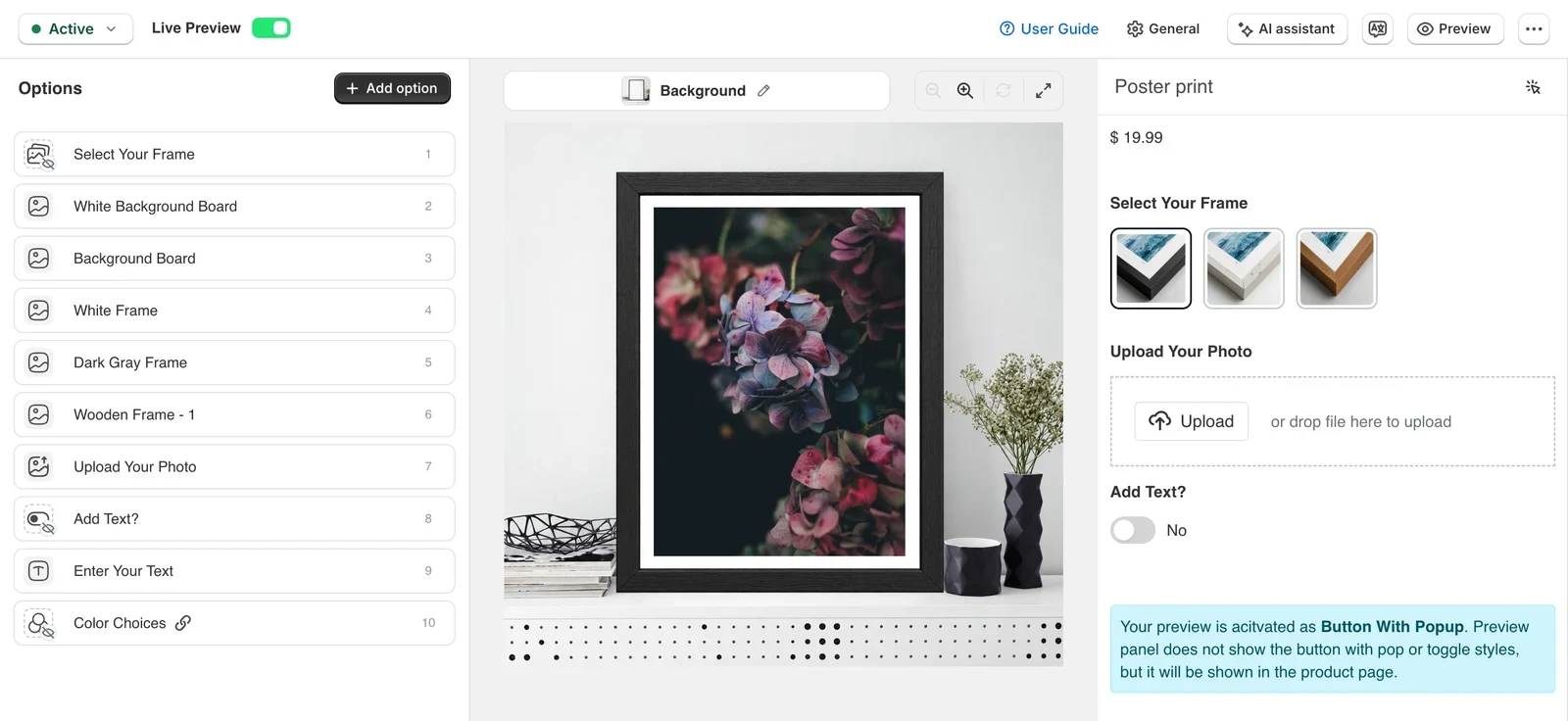
Top bar
- Active / Draft: Active shows the options on the product page; Draft keeps the configuration but hides it from shoppers — handy while you build.
- Live Preview toggle: off means no option is drawn on the product image; shoppers only fill in fields.
- Save and Save & Preview (saves, then opens the product page). Leaving with unsaved changes asks first.
- ⋮ menu: Apply to (copy these options to products or collections), Save as Template, Translate, General settings (On-Page or Popup, button texts, preview timing), and the guided tour.

Left column
Four tabs: Options (the list), Views (sides of the product), Background (image behind the canvas for the current view) and Cart & Order (preview and print files).
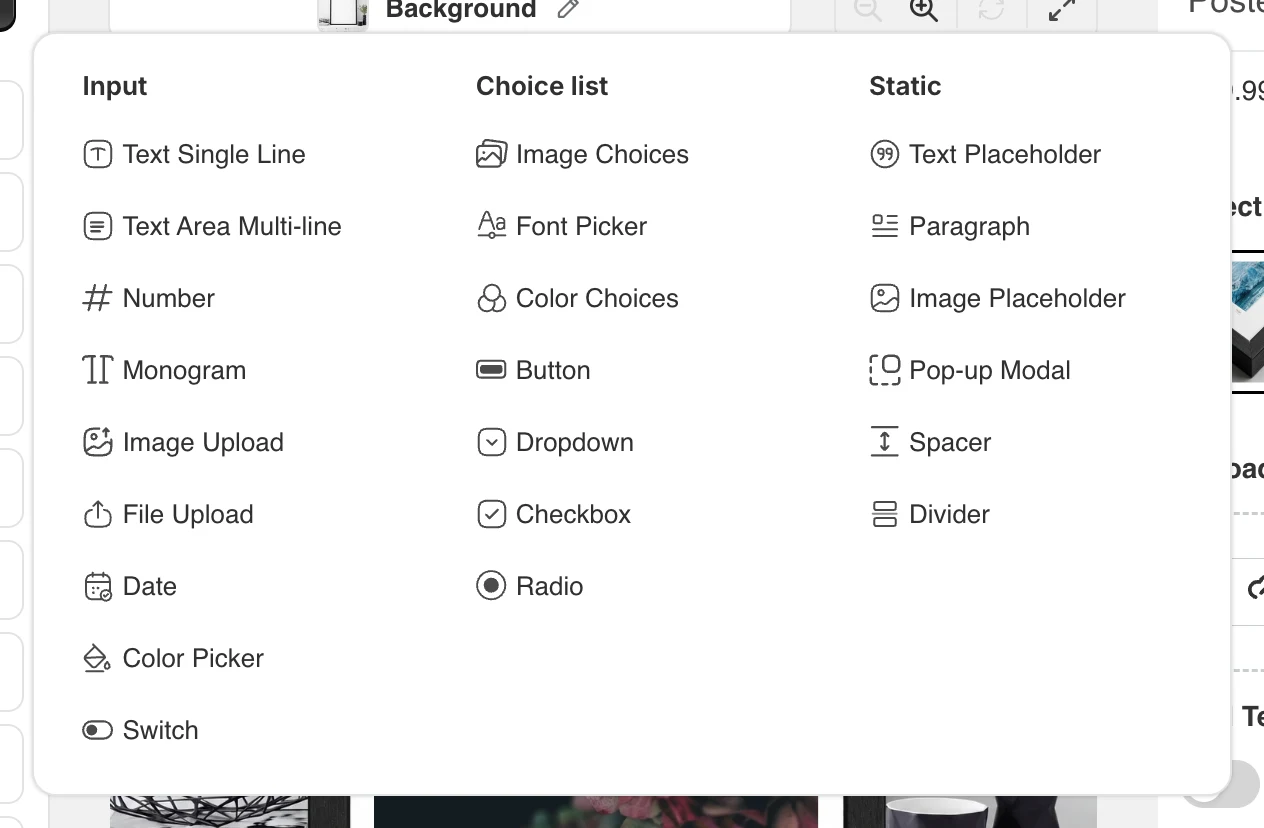
In the Options list each row has a drag handle to reorder, the option’s type icon and label, a “conditional” badge when it has conditions, an eye to hide it from shoppers without deleting, and a ⋮ menu with Duplicate, Delete, Change field type (switch a Button to a Dropdown, say, without rebuilding the option) and Copy to view. Hover between rows for Add option here. The Add option button opens the picker, grouped as Input, Choice list and Static — see Option settings every type shares and the option-type articles.
Clicking a row opens its settings panel with the Basic, Personalizer and Advanced tabs.
Middle: the canvas
The product image with the design layers. Drag a layer to move it, drag its corners to resize, use Orientation in the panel to tilt or curve it. The bar above has the view tabs and zoom controls (zoom in/out, reset, full screen); arrows beside the image switch views.
Right: storefront preview
What the shopper will see, rendered with your Design settings, with a language switcher for translations and Preview in product page to open the real product page. If the app embed is off on the live theme, a banner offers to enable it — the options will not show on the storefront until it is on.
Templates and shared sets
A product created from a template shows “connected to template”; editing it and saving makes it independent (Templates: common questions). A set used elsewhere warns “Shared set” when you edit it from here and offers to edit a copy (Assets).
AI assistant
The AI assistant button in the top bar opens a chat panel beside the editor. Describe the change (“add a required Name field, max 20 characters”, “put the required fields first”, “check this product for problems”) and the assistant makes it in the editor, unsaved, for you to review and Save. Details, limits and your own API key: AI assistant and AI allowance.