If the cart or checkout lists a second product called Item personalization (or a renamed version of it), the store is on the Additional product pricing method: the app adds a hidden product to carry the option price, and Shopify shows it at checkout because the app cannot run there.
Remove it
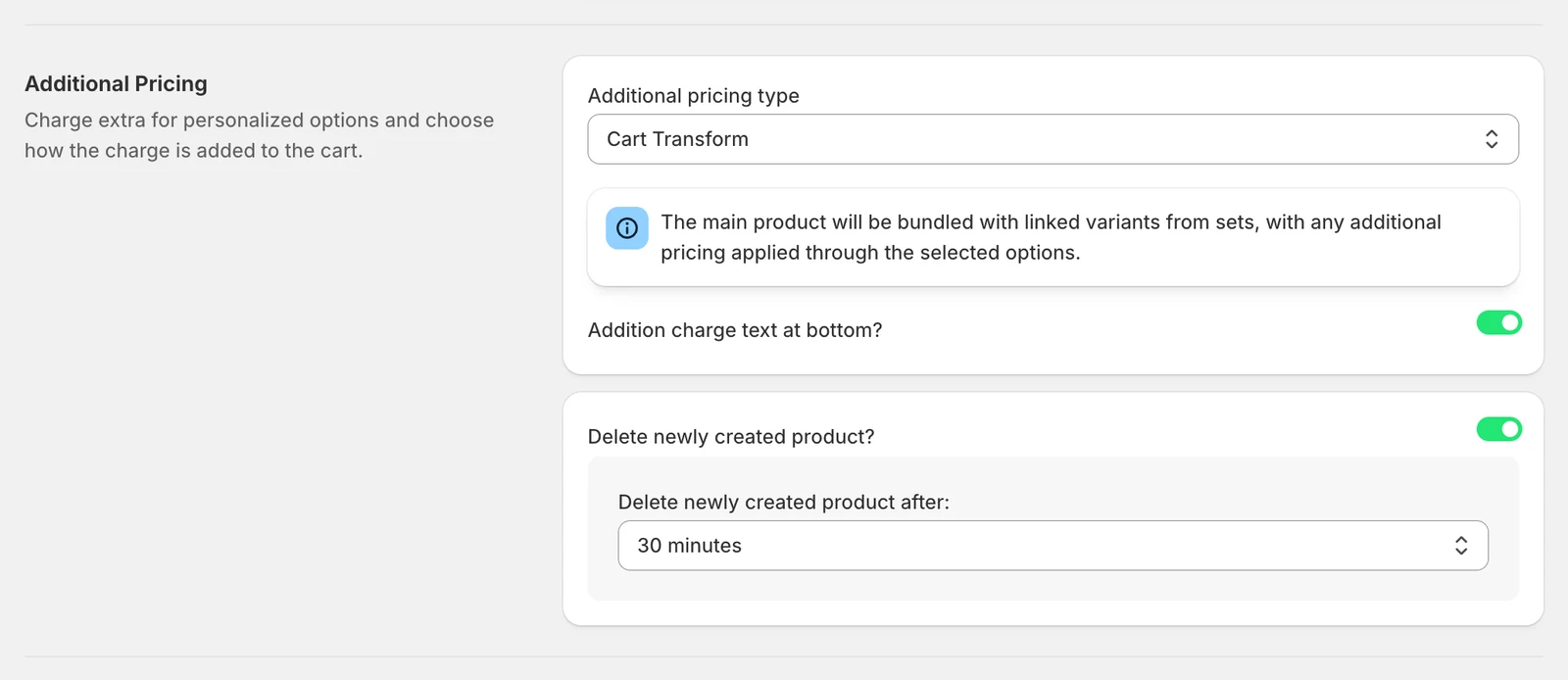
- Open Zepto Product Personalizer → Settings → Functionality → Additional pricing.
- Set Additional pricing type to Cart Transform and Save. Accept the extra permission if Shopify asks for it.
- Empty the cart and add the product again. The option price is now part of the product’s own line, with the breakdown shown under it.
Why keep Additional product?
It is the only method that works together with preorder and subscription selling plans, and it has no cart-size limit. If you need it, you can rename the hidden product and give it an image in Shopify → Products, and hide it from search and collections; shoppers can still remove that line in the cart, which removes the charge.
Full comparison: Pricing methods.
More questions from support
Answers our team gave to merchants who read this article and still had a question. Each is a real case, with the store details removed.
Why do option charges show as wrong prices or large quantities with Additional Product pricing?
The Additional Product pricing method divides your total option charge by the 'Item personalization price unit' to set the hidden product's quantity, so if the unit doesn't divide evenly into your prices, the result is wrong.
- Go to Settings → Functionality → Additional pricing and change 'Item personalization price unit' to a number that divides evenly into all your option prices (e.g. 1 or 0.01).
- To prevent large quantities from affecting inventory, turn off inventory tracking on the hidden Item Personalization product in Shopify.
- To avoid this entirely, switch to Cart Transform pricing under Settings → Functionality → Additional pricing instead — it bundles the charge into the main product line.
How do I stop bots ordering the Item Personalization product directly?
The 'Item Personalization' helper product is created by the app when using the Additional Product pricing method, and bots can buy it directly through its URL even if unlisted. Switch to Cart Transform pricing: go to Settings → Functionality → Additional pricing and change the pricing type from 'Additional Product' to 'Cart Transform' (support can enable this for you). Then set the 'Item Personalization' product to Draft status in Shopify so it cannot be purchased at all. Verify that personalized products still show the correct extra price in the cart.
Why does personalization show as a separate item with a huge quantity at checkout?
The Additional product pricing method adds the charge as a hidden 'Item personalization' product line. When the unit price is 0.01, the quantity shown equals the charge divided by 0.01 — so a 500 charge displays as 50,000 units, which can alarm shoppers. Switch to Cart Transform pricing (recommended) to bundle the charge into the product line instead, or use a unit price matching your smallest charge so quantity shows as 1. Test an order to confirm the display.
How do I hide the 'Item Personalization' product from the storefront?
The 'Item Personalization' product appears because you use the Additional product pricing method. To hide it from the storefront without breaking personalization: in Shopify admin, open Products, find 'Item Personalization', set its status to Unlisted, and save. The product will no longer show in collections or search but personalization and ordering continue to work. For a cleaner setup, consider switching to Cart Transform pricing in the app's Settings → Functionality → Additional pricing, which bundles the charge into the product line and eliminates this product entirely.
How do I hide the 'Item personalization' product created by the app?
The Additional product pricing method creates a helper product to charge for options, which appears as a separate line in the cart. Switch to Cart Transform under Zepto Settings → Additional Pricing to remove it — support can do this for you. If you keep using Additional product, set the helper product to Unlisted in Shopify Products so it does not show in collections or search (it can still be opened by direct link; use Cart Transform to prevent that).
Why does personalization appear as a separate item in the cart or order?
A separate line item for personalization means your store uses the Additional product pricing method instead of Cart Transform. Switch to Cart Transform in the app backend to bundle the personalization charge into the product line. Open the app, go to Settings → Functionality → Additional pricing type, and select Cart Transform. This is the recommended method and removes the separate Item personalization product from orders.
Why does the cart show personalization as separate line items instead of one product?
The cart shows a separate 'Item personalization' line when the store uses the Additional product pricing method instead of Cart Transform. To fix it, go to Settings → Functionality → Additional pricing type and change it to Cart Transform. This bundles the personalization charge into the product line so shoppers see one line with the product image instead of separate items. Refresh the cart page to see the change.